How images actually work?
we keep on seeing images everyday.
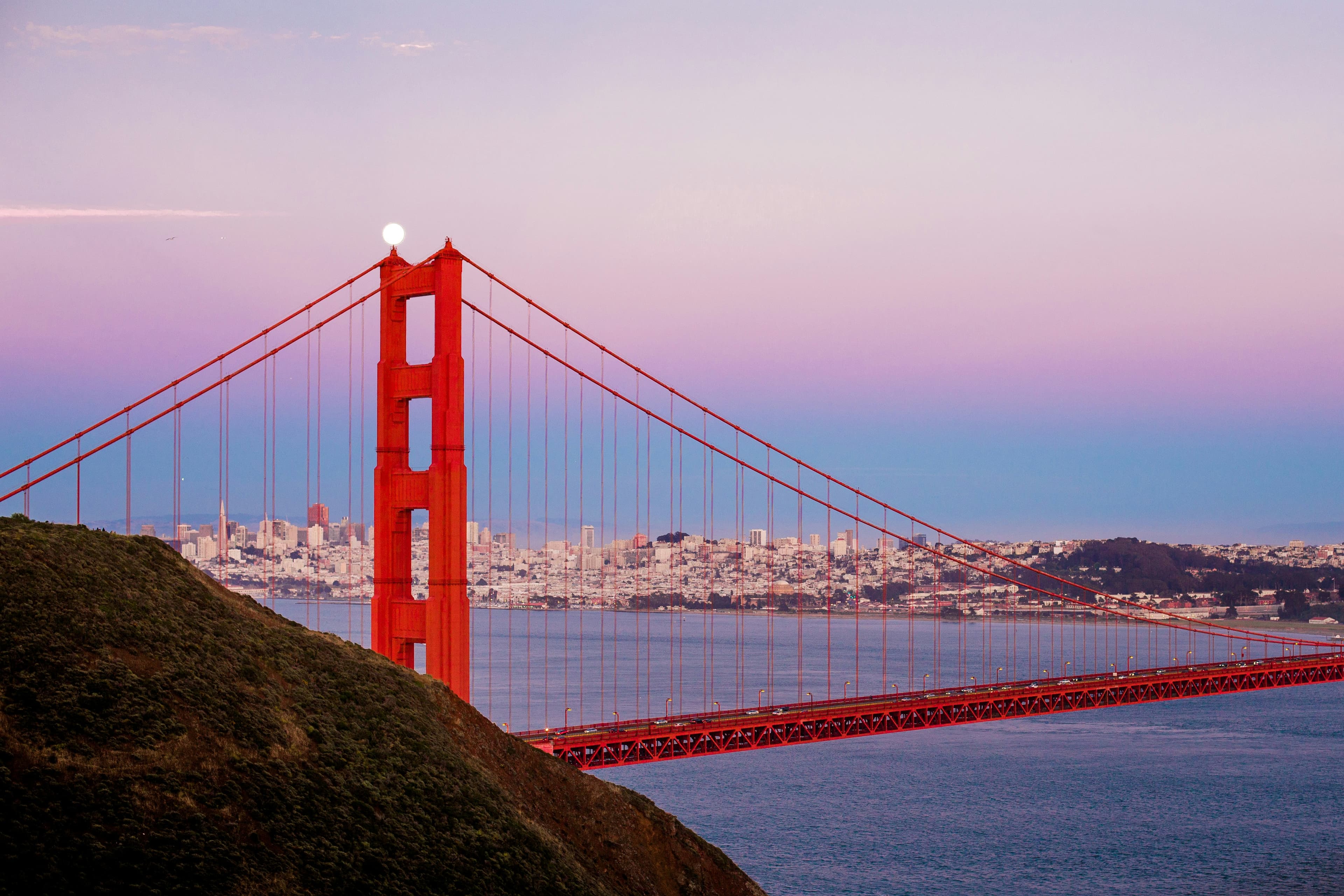
everything from the video that you are watching on youtube, your mobile phone/desktop screens wallpaper to this articles cover image (sf golden gate bridge) is composed of an image.
its one of the most interacted part of digital world.
this article will help you understand how images actually work.
i wont be going into history of images an all.
instead i will go deeper into technical details that go into making of an image.
you can follow through even if you are not technical. i will try my best to explain all terms in simplified way.
if you know how images work. its great. you can still follow along.
if not, then this article is for you!
so lets start.
the phone/desktop screen you're reading this article on has a fixed width and height. only that much area can be used to show you content.
if you want to find yours, open your settings app and search for "resolution" (on mac it's under Displays).
for me it shows this:
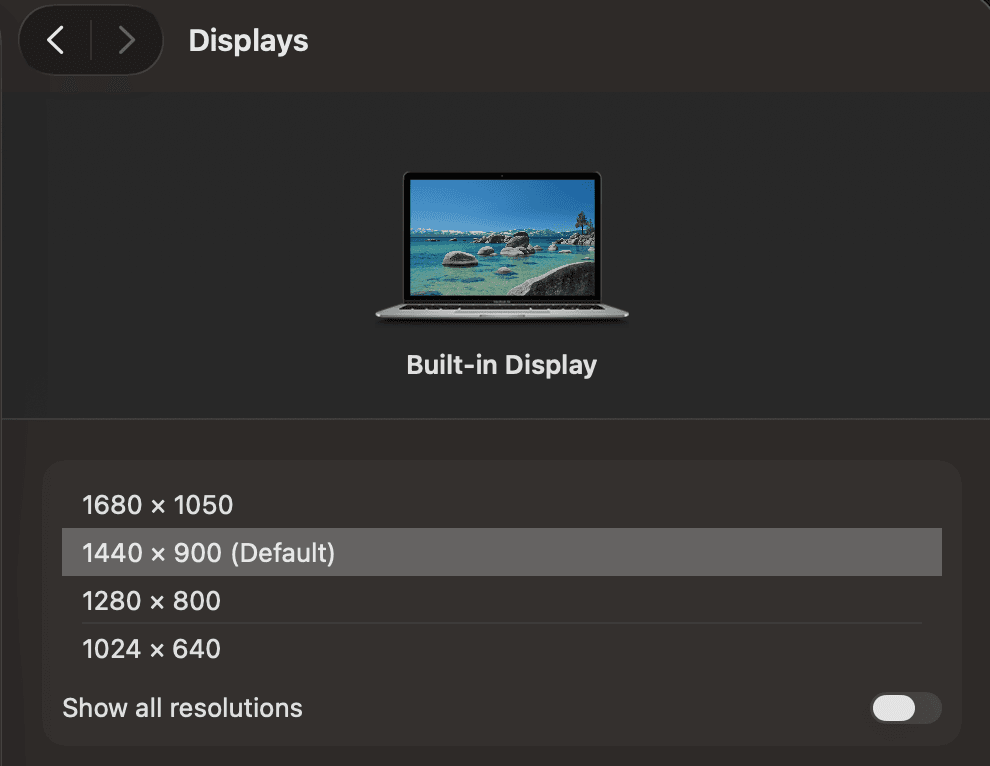
this means my screen resolution is 1440 × 900.
in other words, my screen is a grid of 1440 columns and 900 rows.
and each of these grid items (box) has a name given to it - its called a PIXEL.
so you can say it as a smallest block of your screen.
now lets go deeper into pixel to understand it better.
so what is a pixel, really?
the cover image of this article - if you zoom it in to the full extent then you will see this:
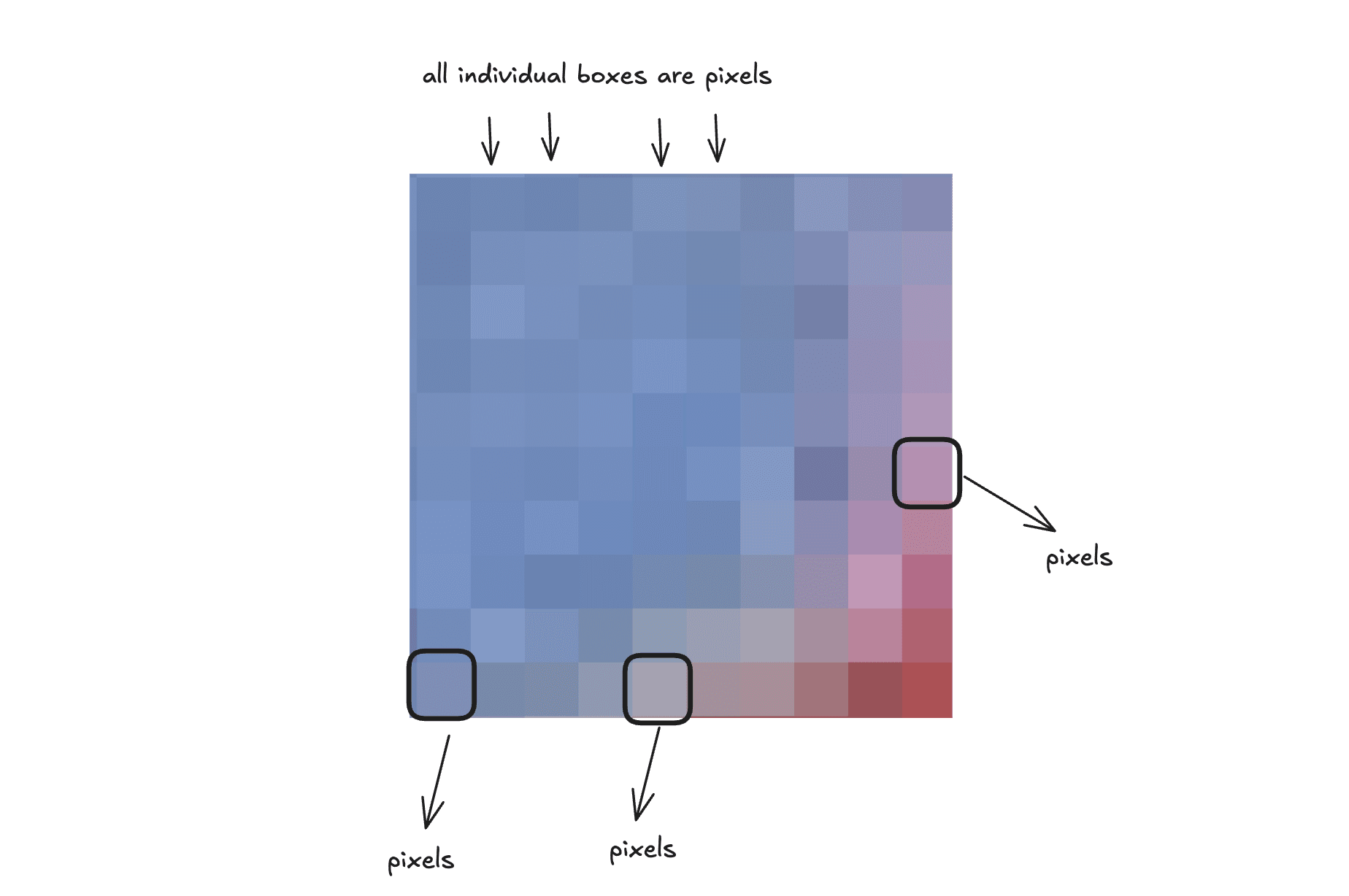
you will notice there are small boxes (square in shape).
each of these boxes are called a pixel.
the number of pixels that an image has is equal to its resolution which means:
for the image above if you see, its resolution will be 10 x 10 - as it has 10 columns and 10 rows.
so total number of pixels that this images has is equal to 10x10 = 100 pixels in total
now as you can see, each of these boxes/pixel has a different color in it. some mostly same, some different.
this leads us to our next question:
where does the color in the pixel come from?
how is it formed and how does a tiny box on your screen decide to be pink, or blue, or red?
so lets go deeper into this concept as well.
color
lets try to recall what a color actually is.
you can do a google search to find out or ask your ai assistant.
color: it's produced when light strikes an object and reflects back to your eye.
you can combine two or more different colors to form a new color out of it.
there are some colors that are primary (ones that can't be made by mixing other colors), which includes colors like RED, GREEN, BLUE
and others secondary - ones that can be formed by mixing primary colors.
the same logic holds true for pixels too!
going with the logic we can say that a pixel is a combination of different colors.
now when we are talking about pixels, there's a term attached to the colors that form it.
we call them color channels.
a color channel represents an individual color. in our pixel there are 3 color channels (there can be more but 3 is the convention):
- RED,
- GREEN
- BLUE
and here's the important part:
remember color comes from light? (from the definition above)
and light has one more property we haven't talked about - brightness.
a light can glow dim, glow bright, or be completely off.
now imagine you are controlling the brightness of each of these three lights independently:
red glowing bright + green dim + blue off = results in a deep orange light.
all three at full brightness = white.
all three off = black
by controlling just the brightness of three lights, you can create almost any color.
now you might be thinking...
"okay, we get that brightness creates colors. but how does a computer actually control brightness?" "what's going on behind the scenes?"
that brings us to our next topic.
ABIT
before we discuss what a bit is, just note one thing: that brightness we talked about above, we represent it with a number.
and where that number comes from is what we're going to see next.
a bit is simply the smallest unit of storage in computing.
that was too technical. let's understand it in a simple way.
look at the electric switch you have in your home. what can you do with it? you use it to turn your fan or lights ON or OFF.
- switch ON → electricity flows through the circuit → your lights/fans work.
- switch OFF → electricity stops flowing → they stop working.
the same principle applies to computers too.
a computer is made up of digital circuit boards (PCBs) that control the flow of electricity. you can let it pass through certain circuits or break it.
this gives a computer exactly two states:
when electricity flows → ON → we call it 1
when it doesn't → OFF → we call it 0
this switch is what we call a bit. it can only hold one value at a time, either 1 or 0 - never both. a computer only knows the world of binary: 0 and 1.
and now the question that must be bothering you: if a computer only understands 0 and 1... how do we store the brightness number we talked about?
that's what i will tell you next.
binary representations
we know that one bit gives us 2 states - either 1 or 0. a computer only knows these 2 values, and everything else gets represented on top of them.
let's consider:
if you want to represent a number like 1, what bits would you use? simple, a bit with value as 1.
and 0? a bit with value as 0.
but what if you want to represent 2?
one bit can't do it, it only has two states.
then the solution we reach is to add/group more bits.
so before we add more bits, let's understand how bits become numbers in the first place. this is called the binary number system.
think back to the normal numbers you use daily (the decimal system).
you would have learned in your school that every digit has a value based on its position:
in 253: the 3 is worth 3, the 5 is worth 50, the 2 is worth 200. positions are worth 1, 10, 100 - each position is 10× the one before it (because there are 10 possible digits: 0-9).
binary works the same way.
just with 2 possible digits instead of 10 (ten). so each position is worth 2× the one before it:
position values: ... 8, 4, 2, 1
so when you see a binary number like 101, you can get its real value by reading it by adding up the positions where a 1 sits:
101 → (1 × 4) + (0 × 2) + (1 × 1) = 5
and 11?
11 → (1 × 2) + (1 × 1) = 3
11 is 3 because the left bit sits in the "2" position and the right bit sits in the "1" position. 2 + 1 = 3.
this is how a computer turns on/off switches to represent real numbers.
and it's not just numbers, everything from letters, colors, sounds, to this article, everything gets represented as these 0s and 1s at the core.
now, one more thing.
we know that with help of binary number system we can represent values.
but what decides how many bits can represent what number of values?
for that you need help of permutations and combinations.
see the image flow for reference:
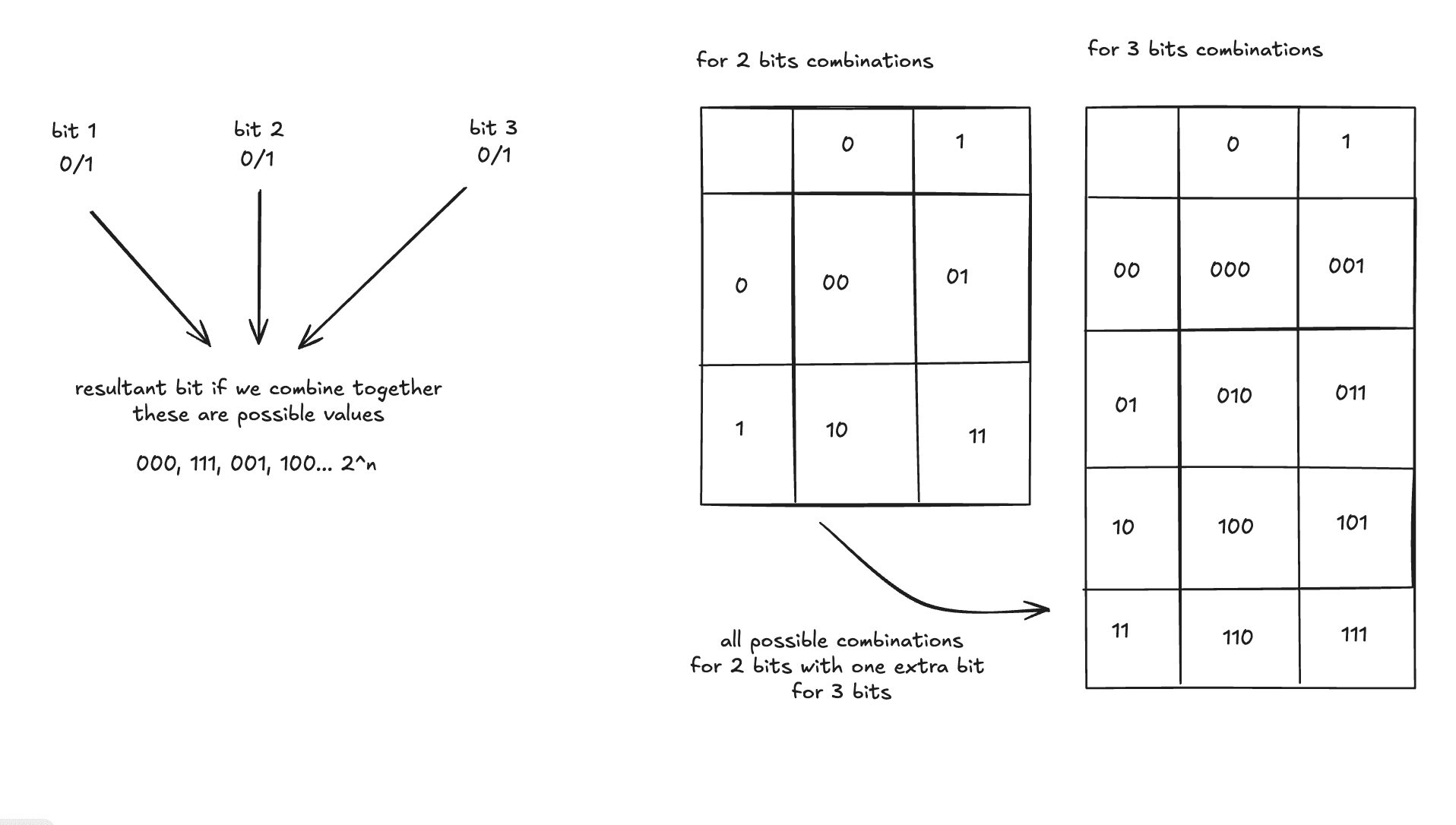
from the image above you can see that we can get a set of all possible combinations that we can get from a group of bits.
if you calculate the values of the bits in the table for 3 bit combination you can see that
the biggest number 3 bits can hold is:
111 → 4 + 2 + 1 = 7 (binary to decimal conversion)
and the smallest is 000 = 0.
so 3 bits cover 0 to 7 - that's 8 different numbers.
you can see the pattern: 1 bit → 0 to 1 (2 numbers) 2 bits → 0 to 3 (4 numbers) 3 bits → 0 to 7 (8 numbers)
every bit you add doubles the range.
so we reach the formula as: n bits give you 2^n numbers.
now, back to our pixel.
we said each channel's brightness is stored as a number.
by convention, we use 8 bits to represent each channel's brightness (red, green, and blue each get their own group of 8 bits).
in computer 8 bits = 1 byte
why 8?
it was a convention that the industry started following - but if you want to understand the why behind it, feel free to search the internet or ask your AI assistant. it goes deep into color theory, which is beyond this article's scope.
now that we've agreed on representing each channel's brightness with 8 bits, the max values a channel can represent would be 2⁸ = 256 total values, starting from 0 to 255. (using 2^n formula)
we do this for each channel - red, green, and blue.
so if you combine them together, you get a value like (255, 255, 255) or (1, 1, 1) or (52, 168, 235). one number per channel.
each channel can hold a value from 0 to 255.
so the total color variations we can get across all channels:
256 (red levels) × 256 (green levels) × 256 (blue levels)
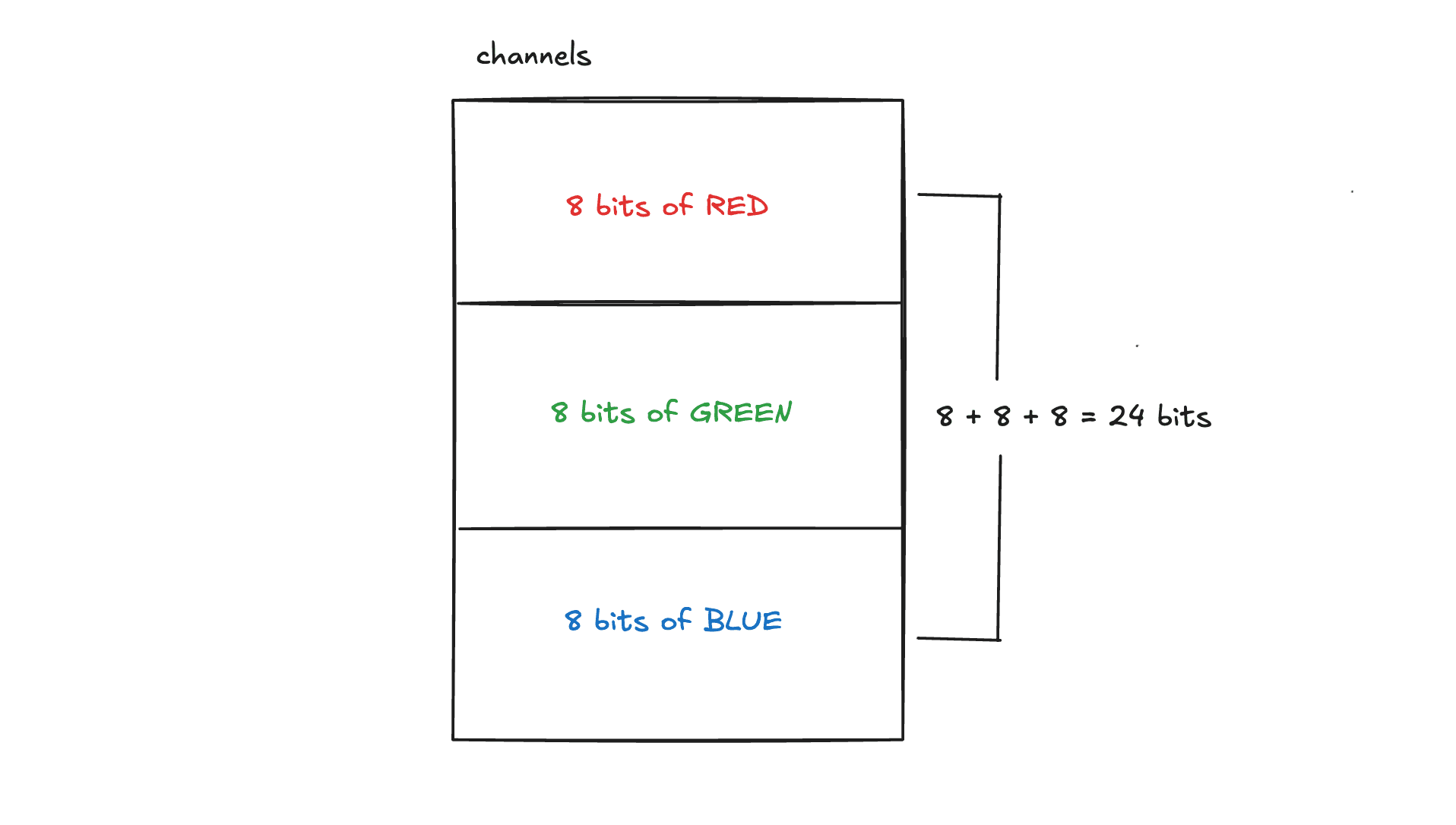
and remember, each channel is 8 bits, so together that's 8 × 3 = 24 bits:
2²⁴ = 16,777,216 colors.
over 16 million different colors from just three numbers.
so now you understand how three brightness values combine to create every color your screen can show.
but this raises one more question - if every pixel carries these numbers inside it... how much space does an actual image take? how are images 5mb, 10mb in sizes?
we will understand the math behind this in the next section.
Megabytes 🤔
how big is an image, actually?
to calculate an image's size, we need two facts (we already know this):
- every pixel holds 3 channels (red, green, blue)
- each channel costs 8 bits (1 byte)
if each channel takes 1 byte then all three channel take 3 bytes in total.
so one pixel = 3 bytes (3 channels take = 3 bytes) - always, whether it's showing black, white or pink. doesnt matter.
now try recalling from our first section, we discussed that:
an image is just a grid of pixels. so size of an image will be = total pixels × 3 bytes.
apply this formula to our pixelated image (zoomed in version of our golden gate bridge cover image)
it had 10x10 resolution/dimension and total 100 pixels.
so total size of this 10x10 image becomes:
= 100 (total pixels) x 3 bytes (size per pixel)
= 300 bytes!
some math
we know 1 byte = 8 bits.
and just like we group bits into bytes, we can group bytes into bigger units you've definitely seen before and are aware of:
1024 bytes = 1 kilobyte (KB) 1024 KB = 1 megabyte (MB)
why 1024 and not 1000?
again binary - 1024 = 2¹⁰. 10 bits can result in 2^n values = 2¹⁰
so when you see your image of size 5MB - it means its built up of 1024x5 KBs = 5,120 kilobytes (KB)
lets try to calculate the total size of the full cover image:
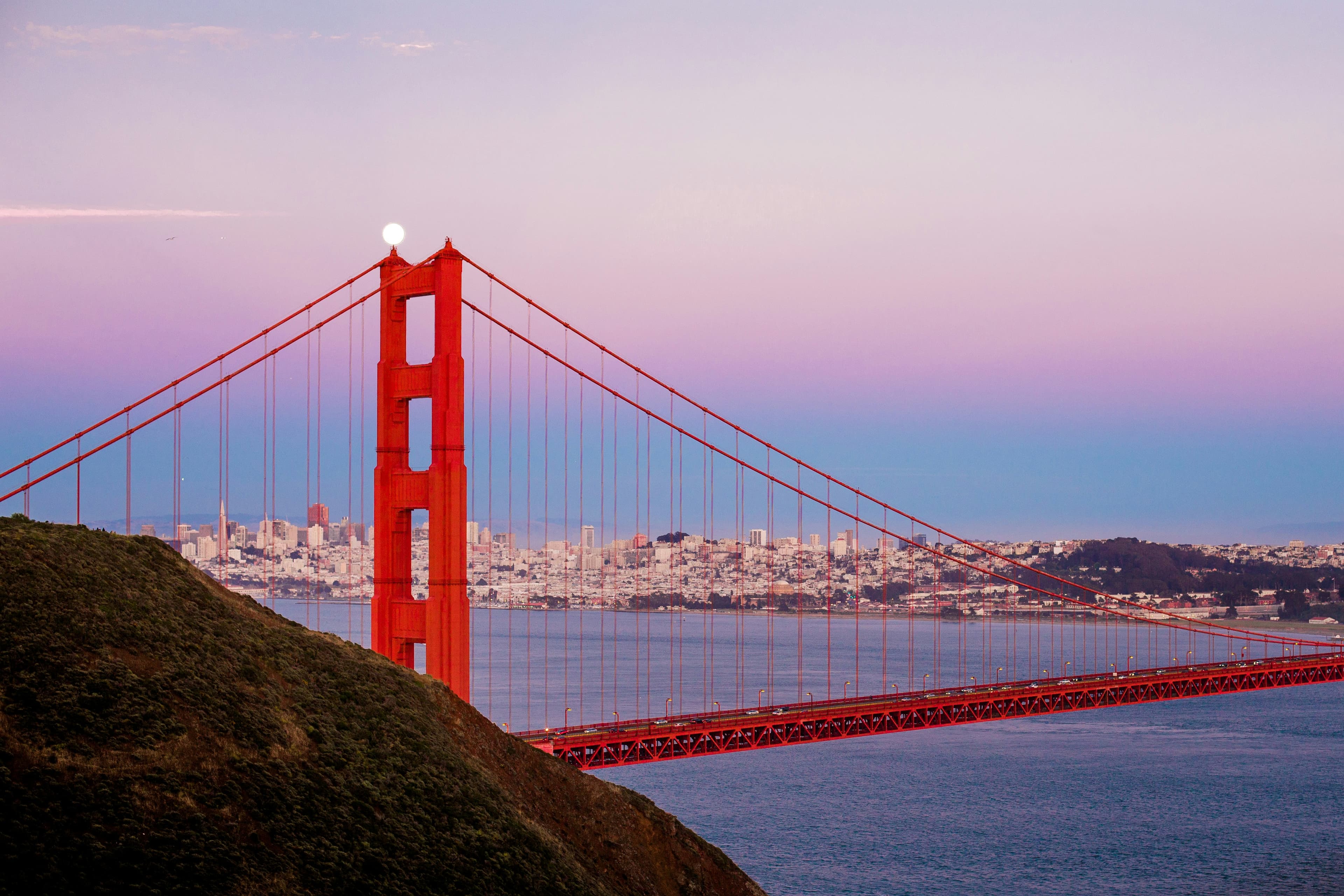
if i inspect this image on my mac it shows its dimensions as this:
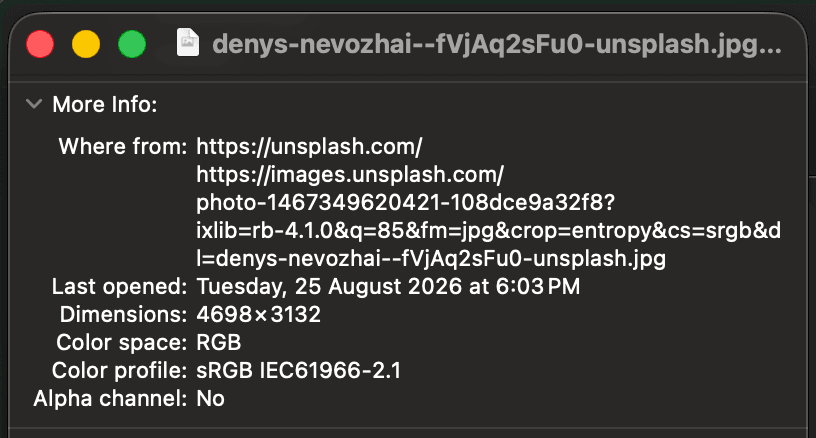
dimensions as per the above image are:
4698 x 3132
so total size of this image would become
= (4698x3132) total pixels x 3 bytes per pixel
= 44,142,408 bytes
which is roughly equal to 44 MB
but this is the image's real size - we call it the raw image size. if your phone stored images at this size, then with just 4000 images your storage would run out.
assuming each image is 44-50 MB: 4,000 × 44 MB = 176 GB - 200 GB. your entire phone is 256 GB. your camera roll alone would eat 70% of it. in a year, you'd need a new phone.
and if i inspect the size my mac shows for this image, it would surprise you. check this out:
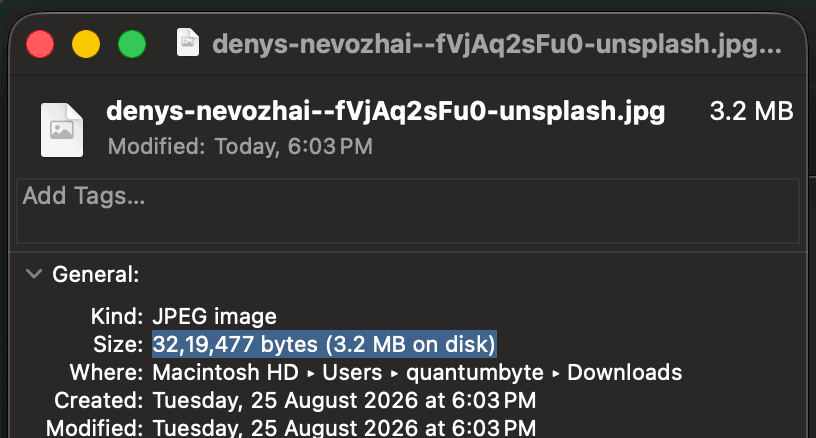
it shows the image is just 3.2 MB. but our calculation said 44 MB.
where did we go wrong?
let's talk about it in the next section.
Let's compress things!
the reason our calculation shows 44MB vs 3.2MB shown by my computer is because my computer stores the compressed version of that image.
some optimizations/algorithms aka compression algorithms are applied on images to reduce their size which makes them easier to store and transmit from one device to another.
if it were not the case then transferring images or storing a lot of them would not be feasible
now if you see, these compression algorithms removed almost ~90% of the bytes from the image.
but then why does our image still look clear and has not lost its quality?
thats what we are going to deep dive into next!
lets look again at our zoomed in version of our golden gate cover image:
if you see the image you will notice that all the pixels near each other are not completely different. visually most of them look the same, their values might differ by just one or two.
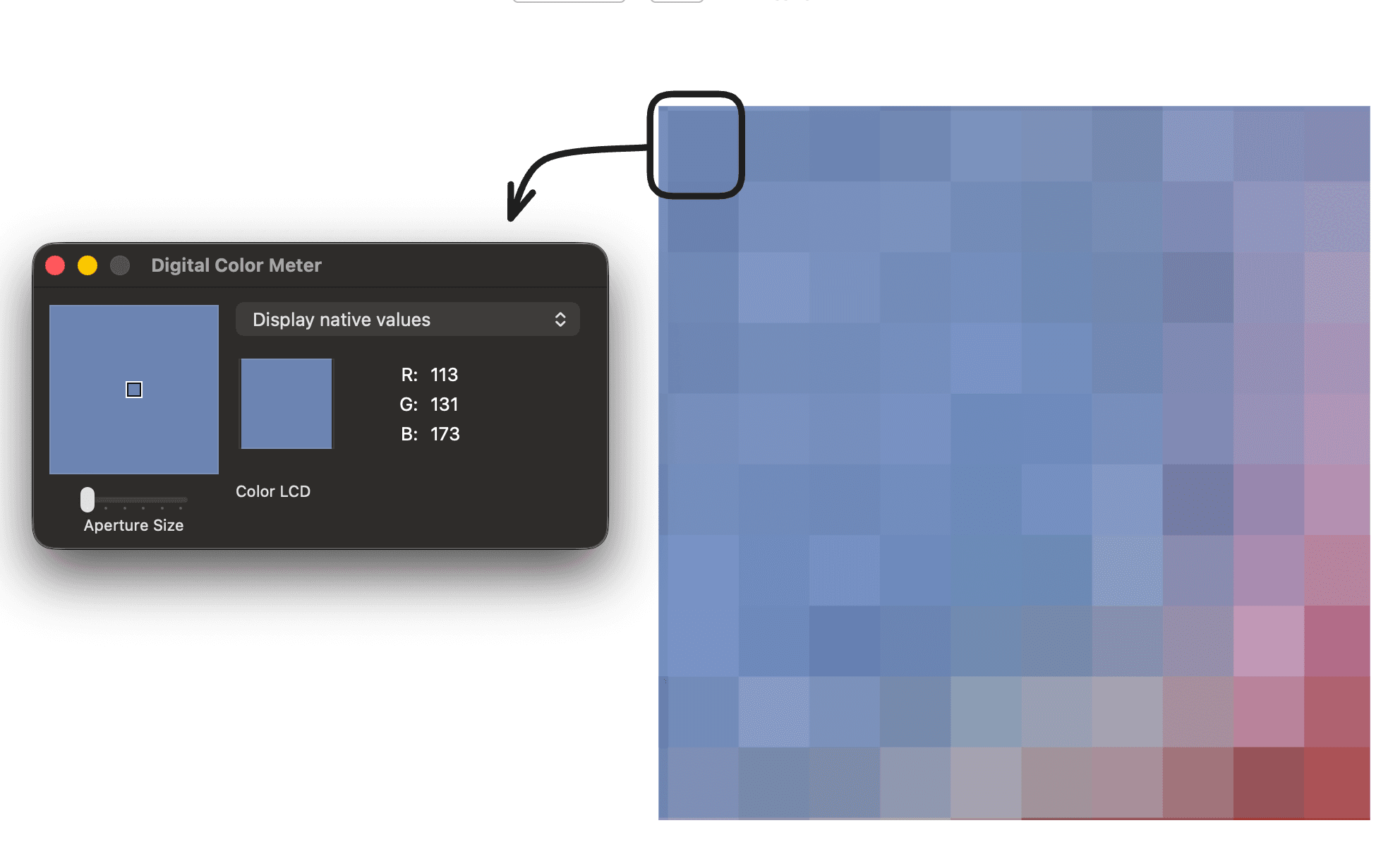
consider the top left most pixel and the pixel to its right, if we inspect their RGB equivalent values we get something like this:
pixel 1: rgb(113, 131, 173)
pixel 2: rgb(116, 134, 176)
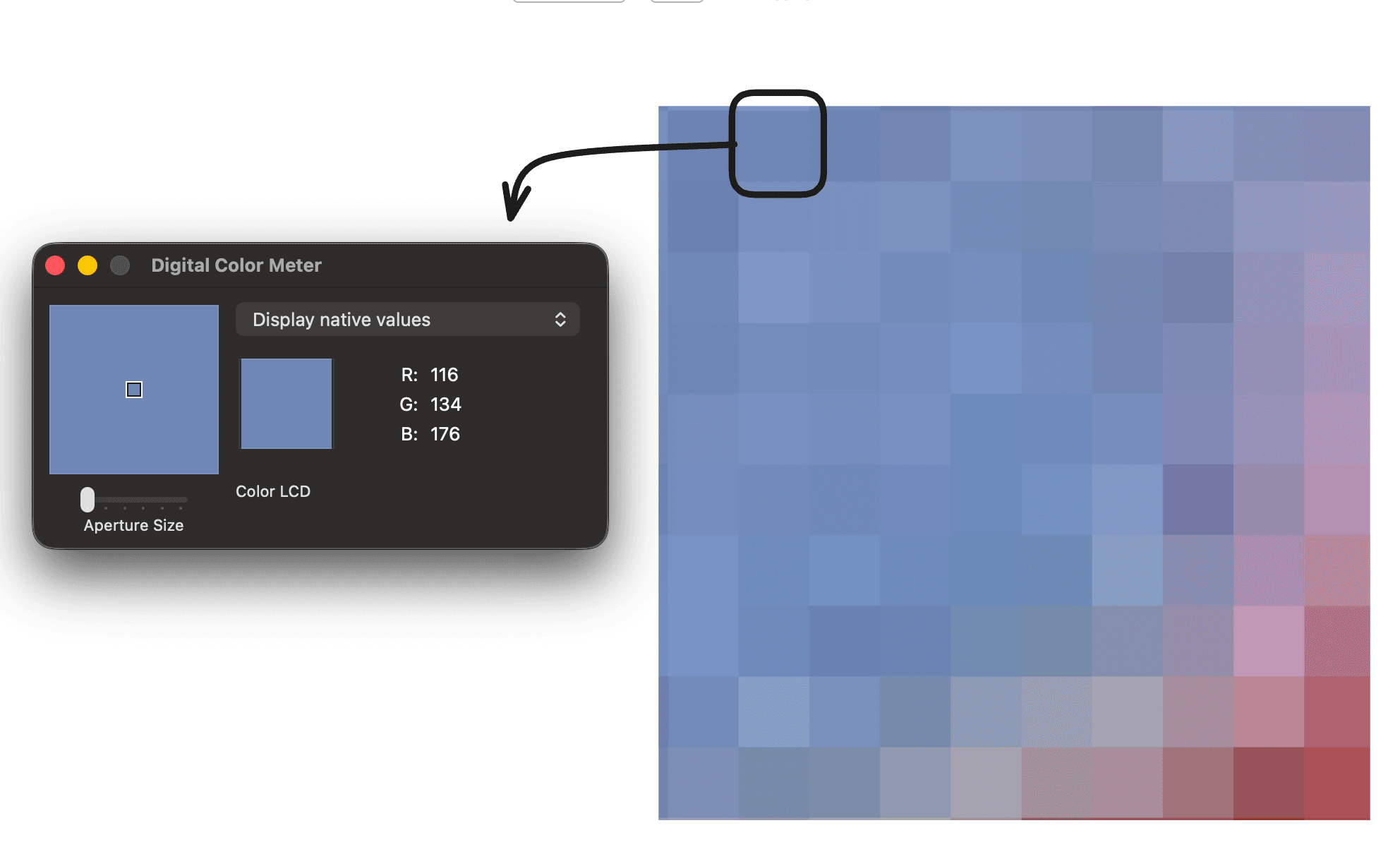
these two pixels don't differ by a lot, just 2-4 values up or down. visually, your eyes see the same color. but internally, two different sets of values are being stored.
we call this redundancy -- the image carries information your eyes can't even distinguish.
or visually for the eyes these two are same colors but internally its two different values that's being stored.
now, if you were asked to write a file describing the colors of all pixels in this full golden gate image, how would you go about it?
normally you'd go pixel by pixel, row by row, writing something like:
pixel p1 (1,1): rgb(244,66,88) pixel p2 (1,2): rgb(244,60,76) ...so on till you reach the 14 millionth pixel at the bottom right.
that would be very inefficient, your file size would get huge.
and that's exactly how images get stored: we keep instructions on how to render the pixels, plus the image's dimensions and other metadata. this is called encoding the image.
when you open a stored image in your browser or previewer, the renderer decodes these encoded values and renders all the pixels
so if we want to reduce the size of this 44 MB image, we need to find a way to reduce the number of instructions needed to describe it.
there are two ways to do this:
- remove the exact repetition
you could say:
pixels p1, p10, p5, p90 have color rgb(255,80,60)
pixels p2, p6, p8, p13, p99, p66 have color rgb(0,0,33)
this reduces the number of instruction lines, and we'd still encode the exact meaning of the image. no detail about any pixel is lost.
- remove the near repetition
remember pixel 1 and pixel 2 from above – both had near identical RGB values?
so we could just say:
pixels p1, p2 have color rgb(244,66,88)
...and do this for all near identical pixels. this significantly reduces the instructions, since we're
grouping visually same pixels under one value instead of storing two values that differ by just a couple
of numbers.
the instruction size becomes very small, but we lose a little quality.
the renderer reads the instructions and sees "these two pixels are the same, render the same color".
from far it's invisible to your eyes, but zooming in would reveal the difference.
these two techniques are what make the PNG and JPEG image formats that you see majorly:
- PNG uses method 1 -> nothing is lost, so it's called lossless compression
- JPEG uses method 2 -> a little quality is sacrificed, so it's called lossy compression
this is what we call compression algorithms/techniques.
note: compression only changes what gets stored on your disk/storage. when you open the image, it still occupies the full size (44 MB for our golden gate image) in memory/RAM -- compression just shrinks the number of instructions stored in the file. the fewer instructions, the smaller the file
now that you know about encoding, decoding and how the size of image gets reduced when it gets stored on your computer, one question you might have is:
when does this encoding really happen?
the answer to that question is quite simple. when you capture an image from your camera, before it gets saved to your gallery, it gets compressed from raw sensor data into your camera's default format -- usually .jpeg (or .heic on iphones). so your gallery actually holds the compressed images.
and JPEG/PNG aren't the only formats -- you've probably seen .webp, .heic (what iphones shoot in), .gif, .avif. they're all built on the same two ideas you just learned: removing exact repetition, or removing near repetition, just with differences in their implementations.
that's a wrap?
and with that, we've covered what an image is, how it's formed, and how it's stored.\
it's incredible to see how far humans have come - we built computers and embedded an entire visual world inside them using nothing but zeroes and ones!
tldr:
- your screen is a grid of pixels - the smallest blocks that make up everything you see
- each pixel is just 3 numbers - how bright its red, green and blue lights should glow
- those numbers are stored as bits - on/off switches, grouped in pair of 8
- an image's raw size = total pixels × 3 bytes - but files on disk are smaller because of compression: shorter instructions describing the same image
- lossless (PNG) keeps every pixel exact; lossy (JPEG) removes tiny invisible details in exchange for much smaller files
some extras (for the ones that are curious :)
- what actually happens when i zoom into an image?
when you zoom in, your computer or phone screen actually increases the size of the individual pixel boxes. so you see a bigger pixel showing the same thing. the image doesn't get more detailed - it's still the same 10,000 pixels. it's just drawn larger.
- if i open the same image on my phone and on a big TV, does it look the same?
the image is the same, but visually it appears different. remember, an image has a fixed pixel count/dimension. what actually changes is the screen you're seeing it on.
your phone squeezes those pixels into 6 inches/smaller area, while a TV shows the same pixels across 55 inches/larger area.
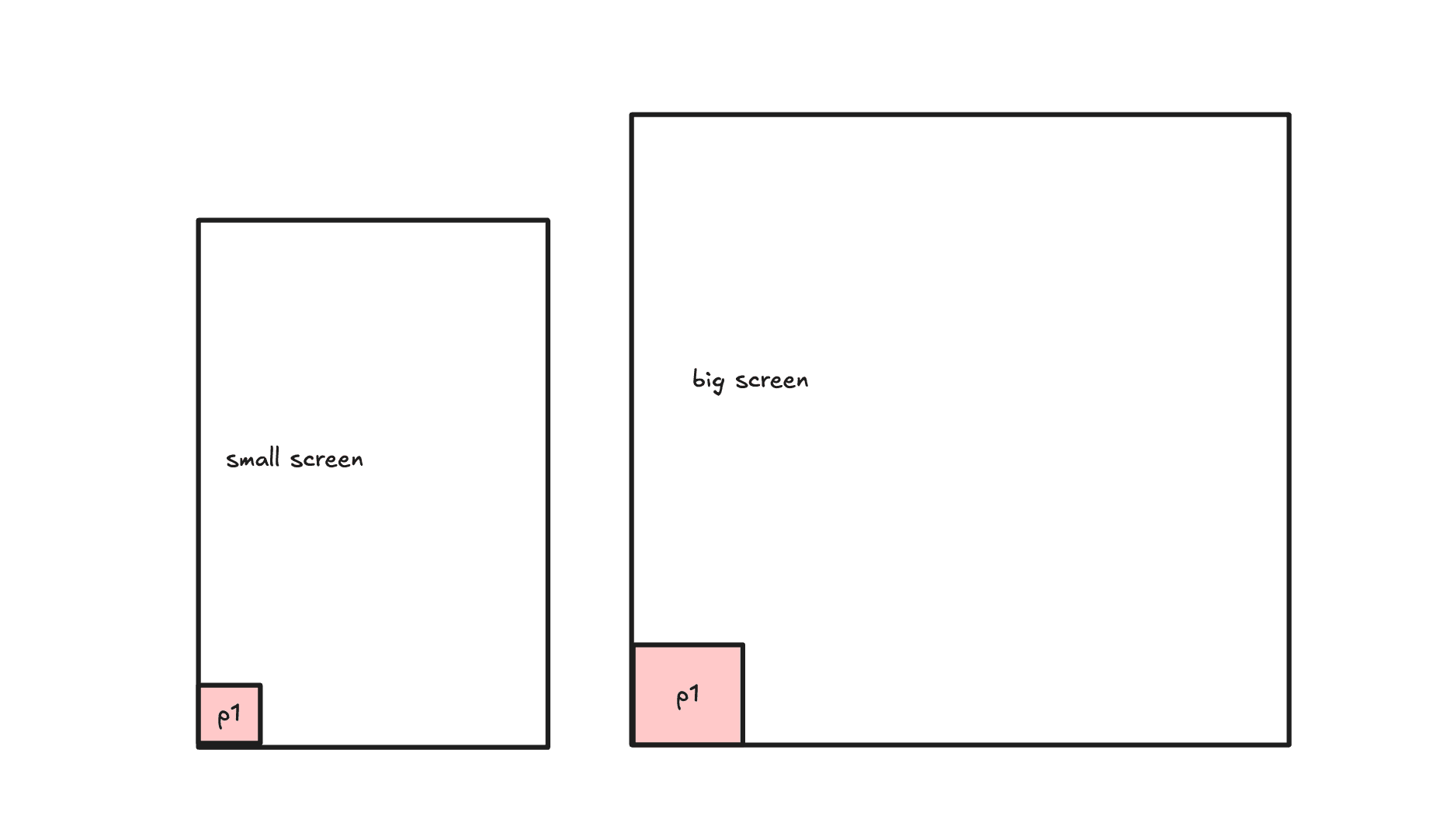
so on the TV, each pixel box is physically bigger, and if you go close enough, you can actually see them. which brings us to...
- why do billboards look sharp if they're so low resolution?
it all depends on the viewing distance.
a billboard actually has fewer pixels per inch than your phone screen, but you view it from 50 meters away, not 30 centimeters. from that distance your eyes can't distinguish the individual pixel boxes, so they all look the same to you. if you will go closer you will start to see square boxes.
thats a wrap again!
hope you found this valuable and learnt something new.
ayush